1. Go to the following link:
https://cambridgecab.sharepoint.com/sites/software/Documents/Forms/AllItems.aspx
2. Select the folder called 'Phone system'.
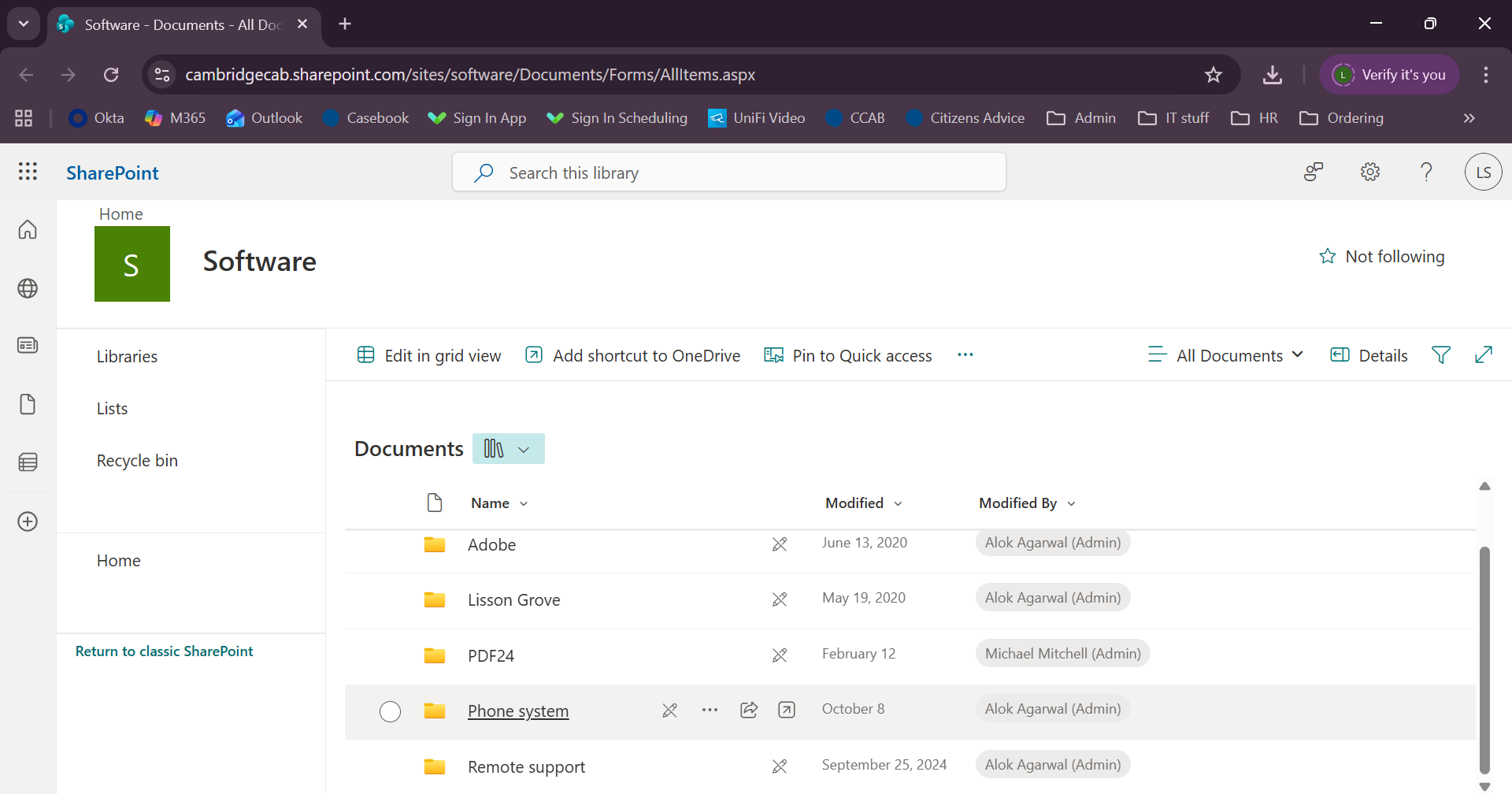
3. Download the folder called 'Microsip Cambridge' by clicking the three dots.

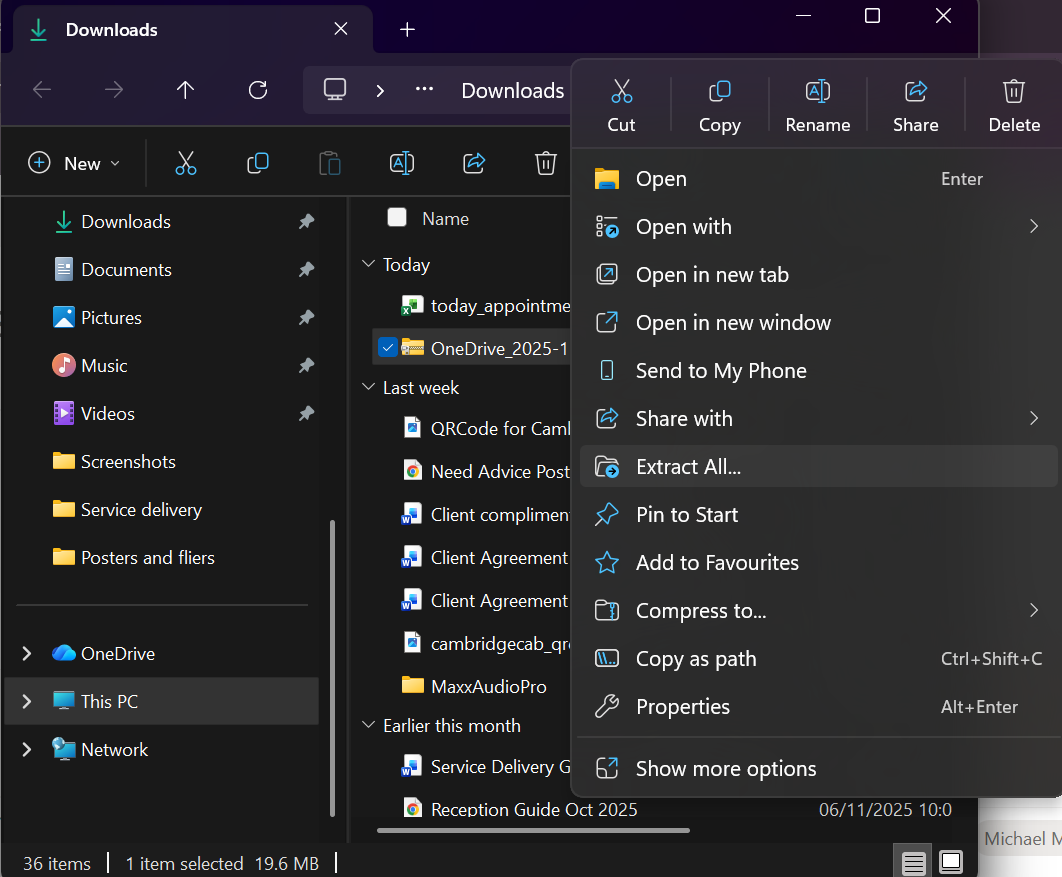
4. Locate the ZIP file in your downloads. Right click on it and select 'Extract all'
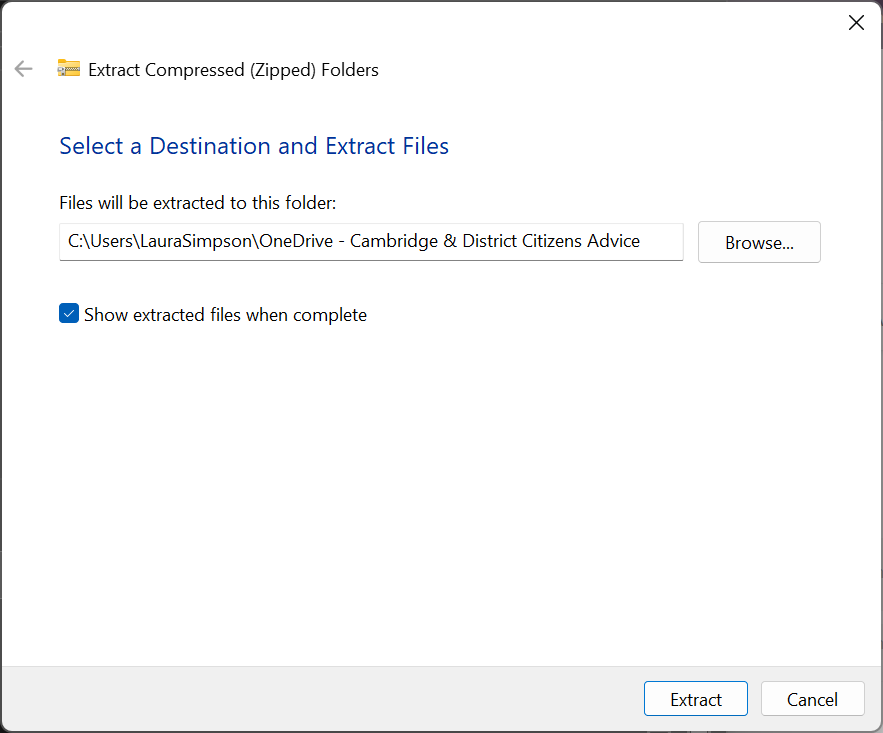
5. Select browse and find the location you want to save the Microsip folder into (e.g. in your OneDrive folder), then click 'Extract'.
6. Open the new extracted folder (called Microsip Cambridge). Scroll down to find the Microsip application file with the blue phone icon. Right click on this file and select 'Copy as path'. This will copy the link to the application.


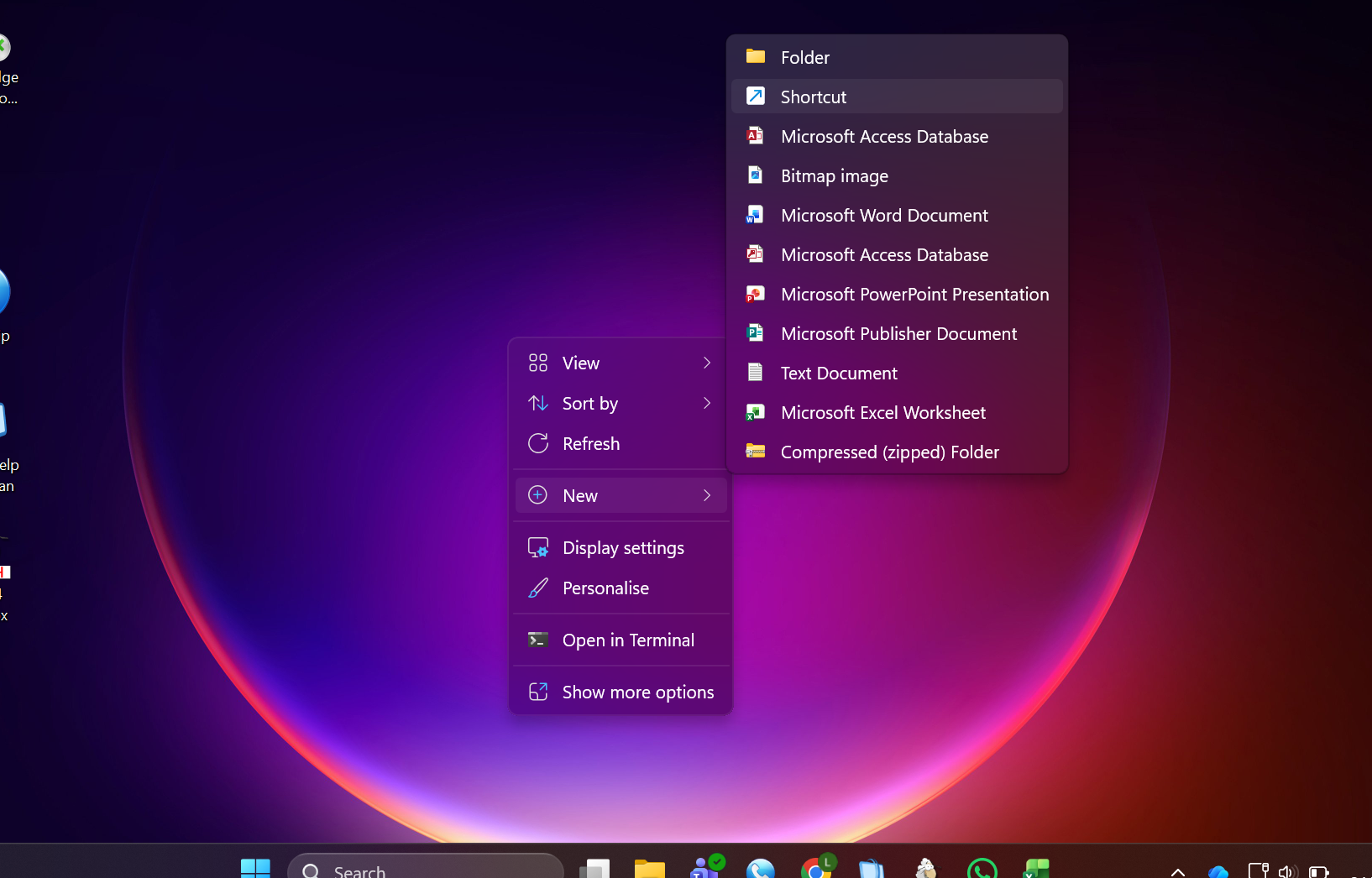
7. Go to your desktop and right-click on the background. Select 'New', then 'Shortcut'.
8. Paste the link into the box and click next.
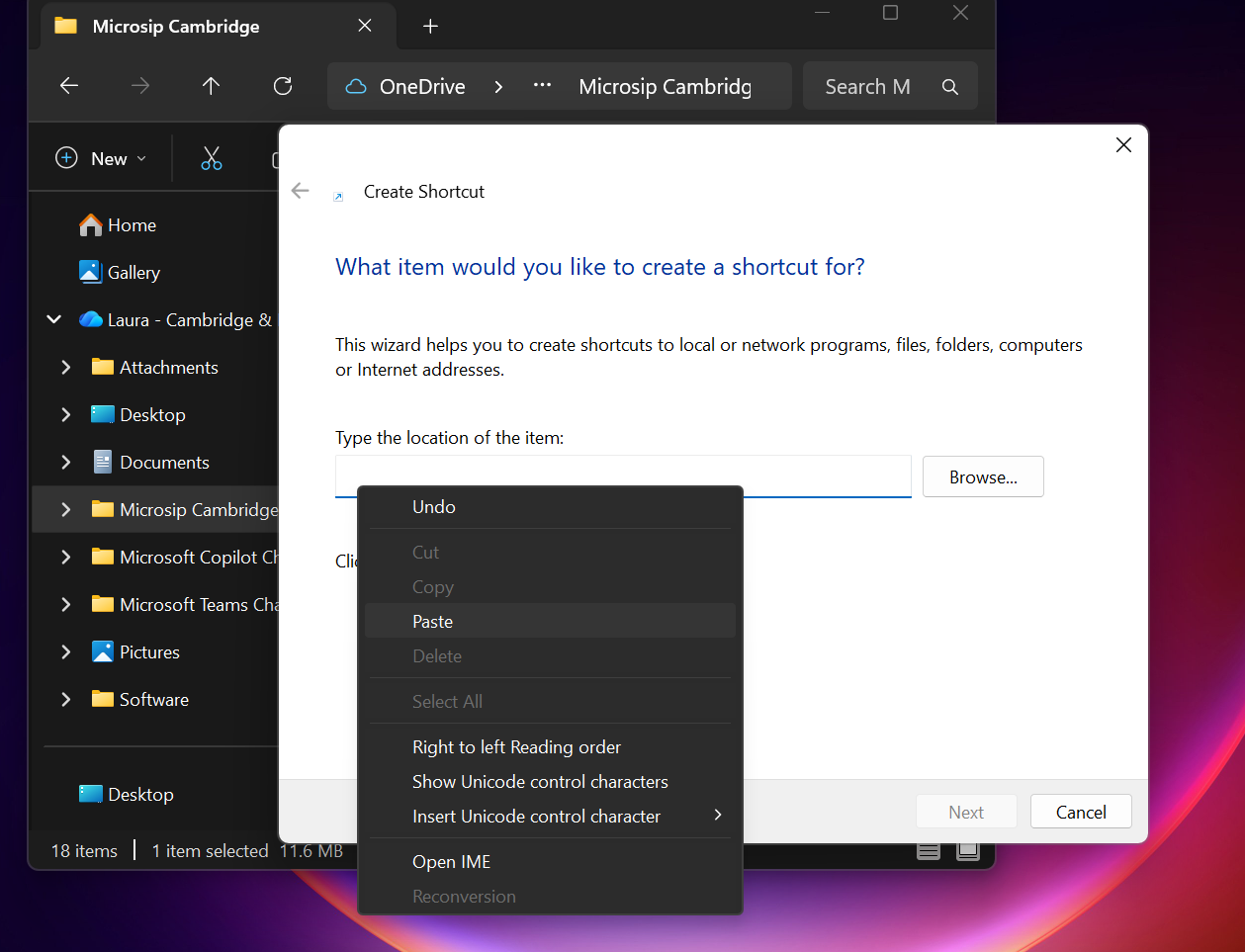

9. Click finish.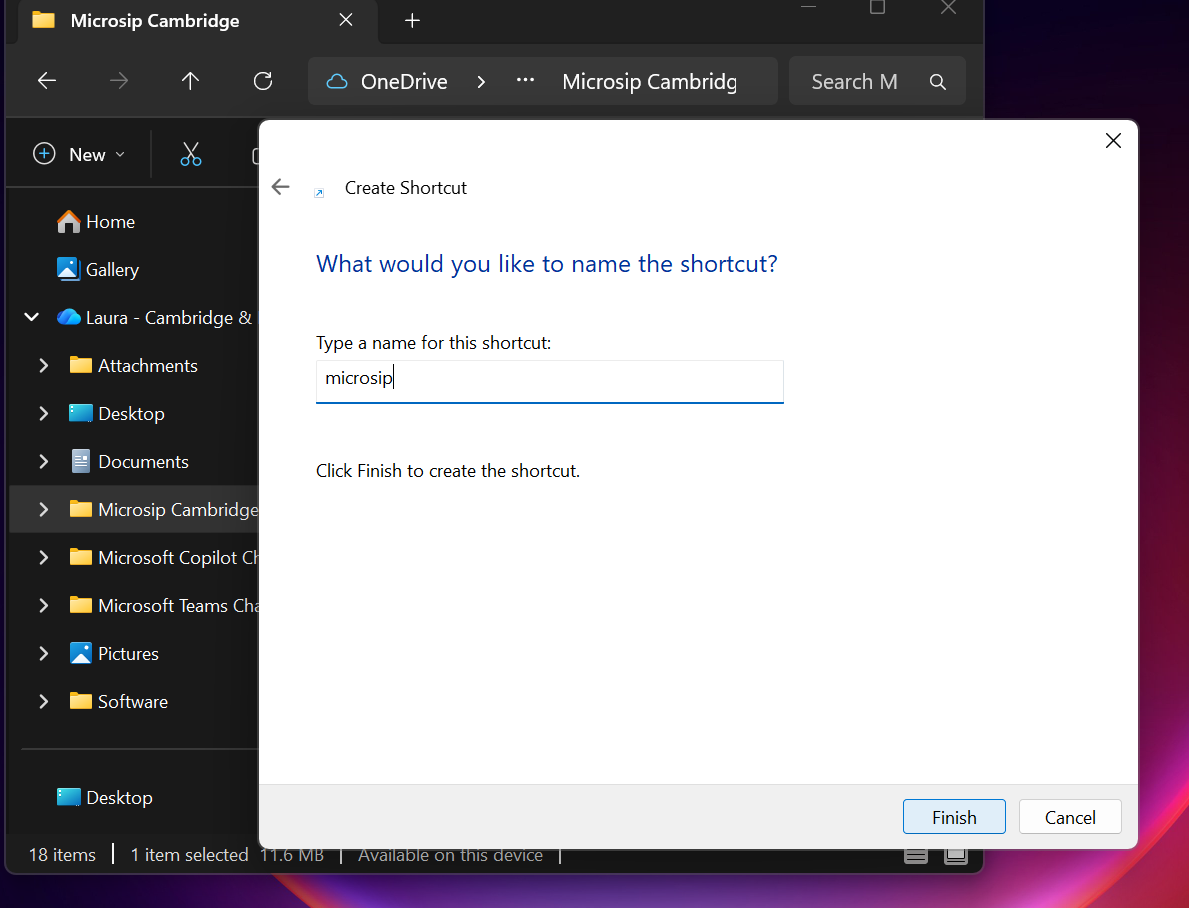
10. Open the application and log in. You can find your username and password in the excel spreadsheet in the 'Phone system' folder: https://cambridgecab.sharepoint.com/sites/software/Documents/Forms/AllItems.aspx. Your username is a 4-digit number in the first column in the spreadsheet, and the password is the long combination of letters and numbers on the column on the right of your name.Don't forget to change your account name and display name too.
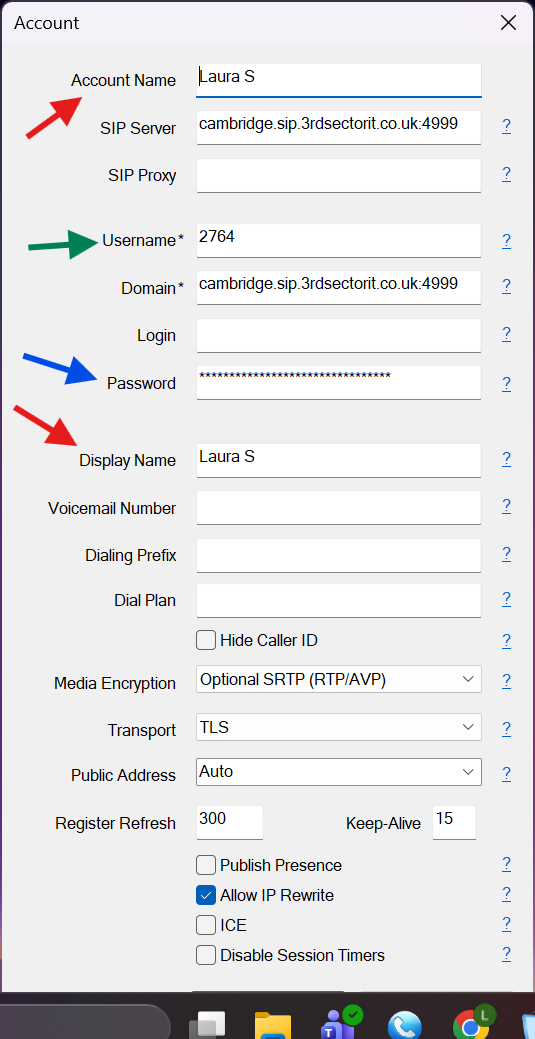
11. Click save and you're good to go!
Was this article helpful?
That’s Great!
Thank you for your feedback
Sorry! We couldn't be helpful
Thank you for your feedback
Feedback sent
We appreciate your effort and will try to fix the article