Option A: Upload the document to OneDrive
- After downloading the file, go to https://cambridgecab-my.sharepoint.com/
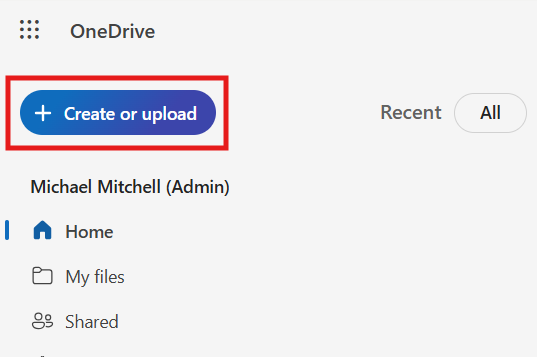
- Select 'Create or upload'
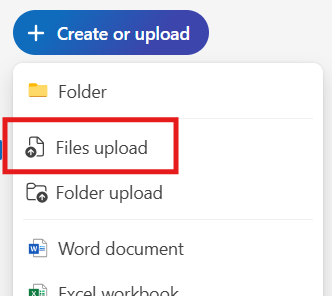
- Select 'Files upload'
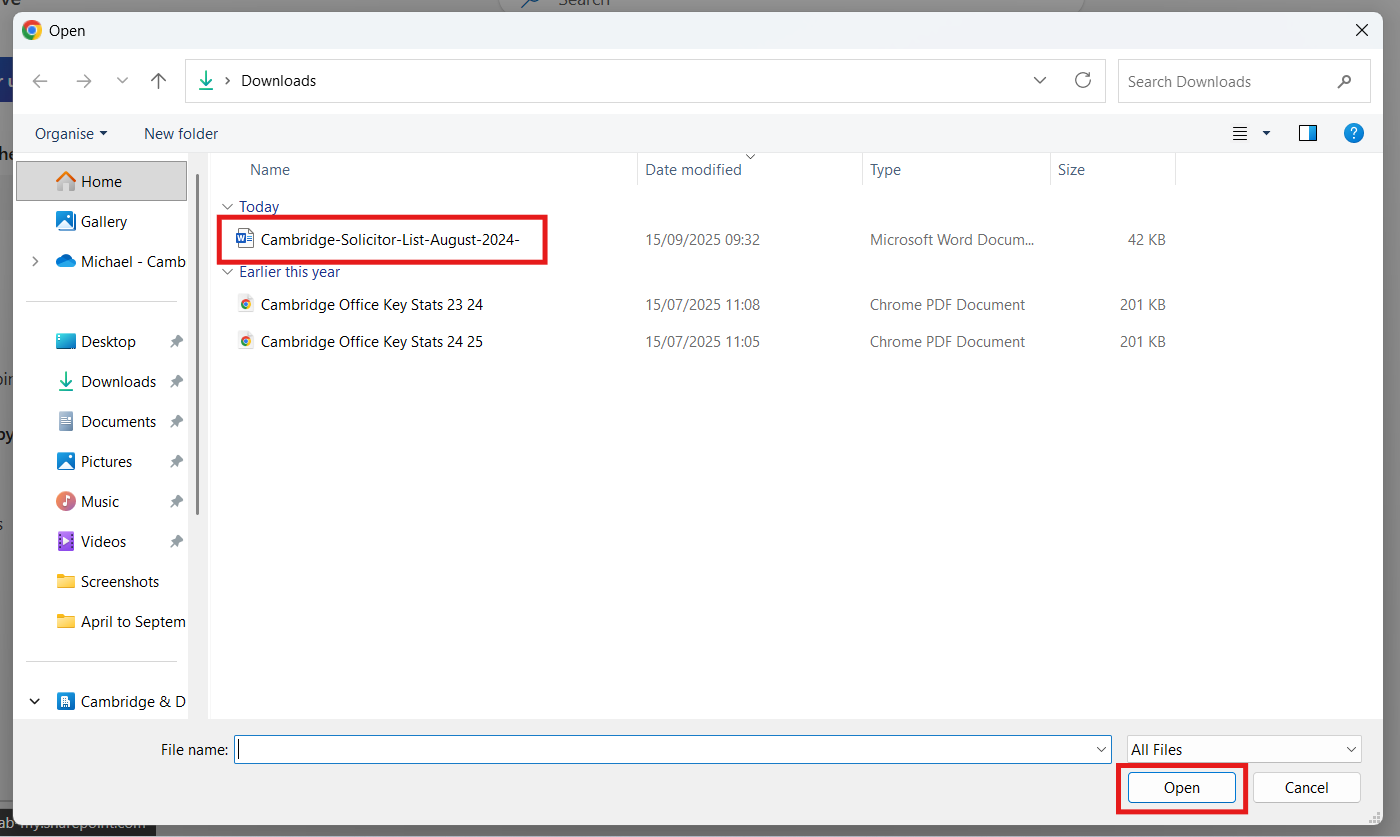
- Select the file you want to view then select open
- You should see the following message, confirming your upload:

- Select 'My files'
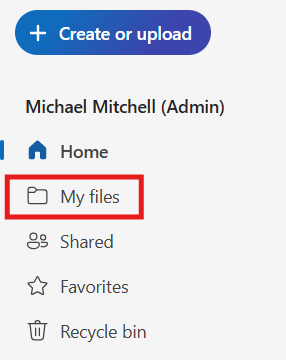
- You can now see and select your uploaded file:
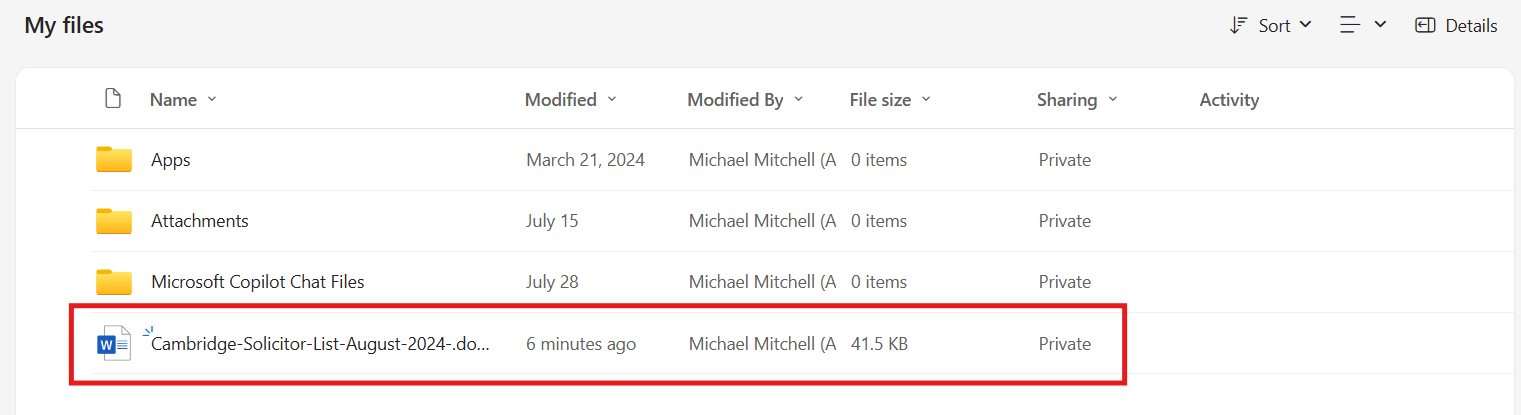
- You can now open and edit your file. Files in OneDrive save automatically so you do not need to manually save.
Option B: All downloads go to your OneDrive automatically
1. Go to your browser's settings page.
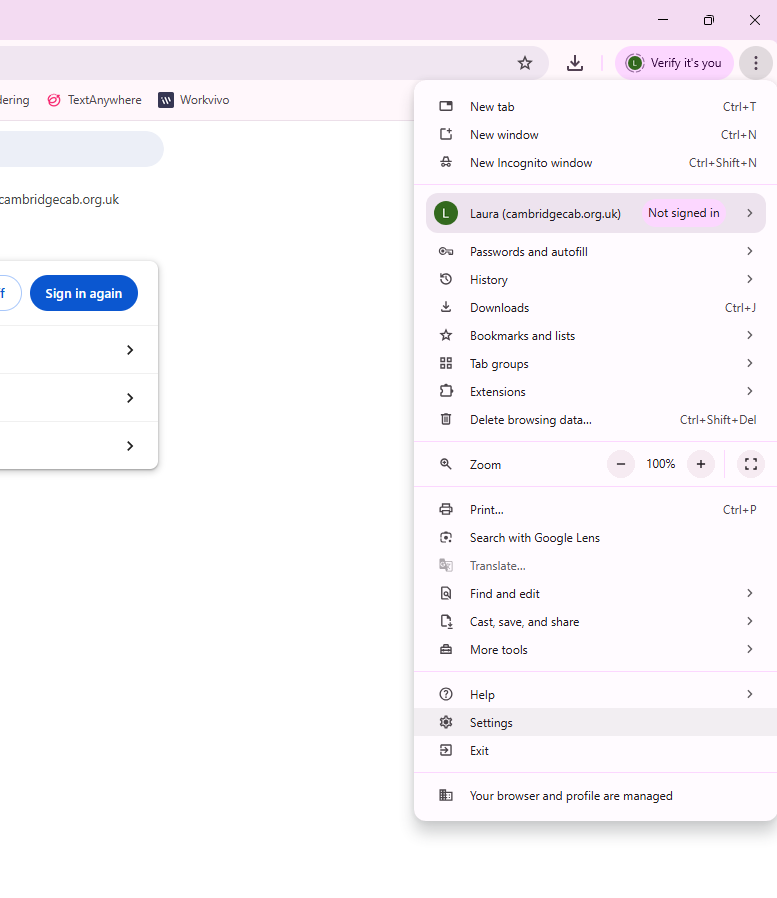
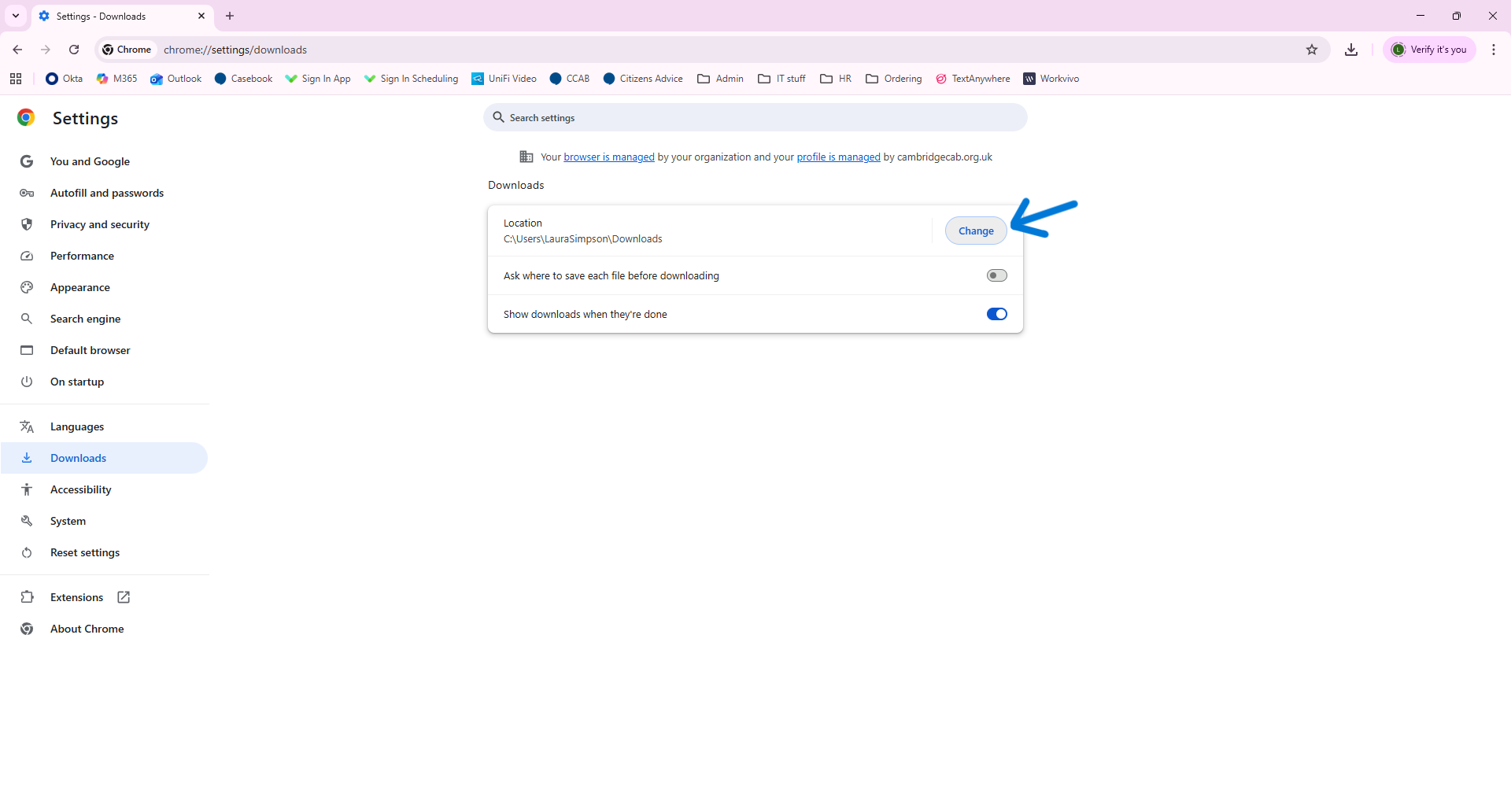
2. Select 'Downloads'. It will then show you where your downloads currently save to.
3. Select 'Change'.
4. Select your OneDrive folder - this will be a folder called '[Your Name] - Cambridge & District Citizens Advice', with a blue cloud symbol next to it.
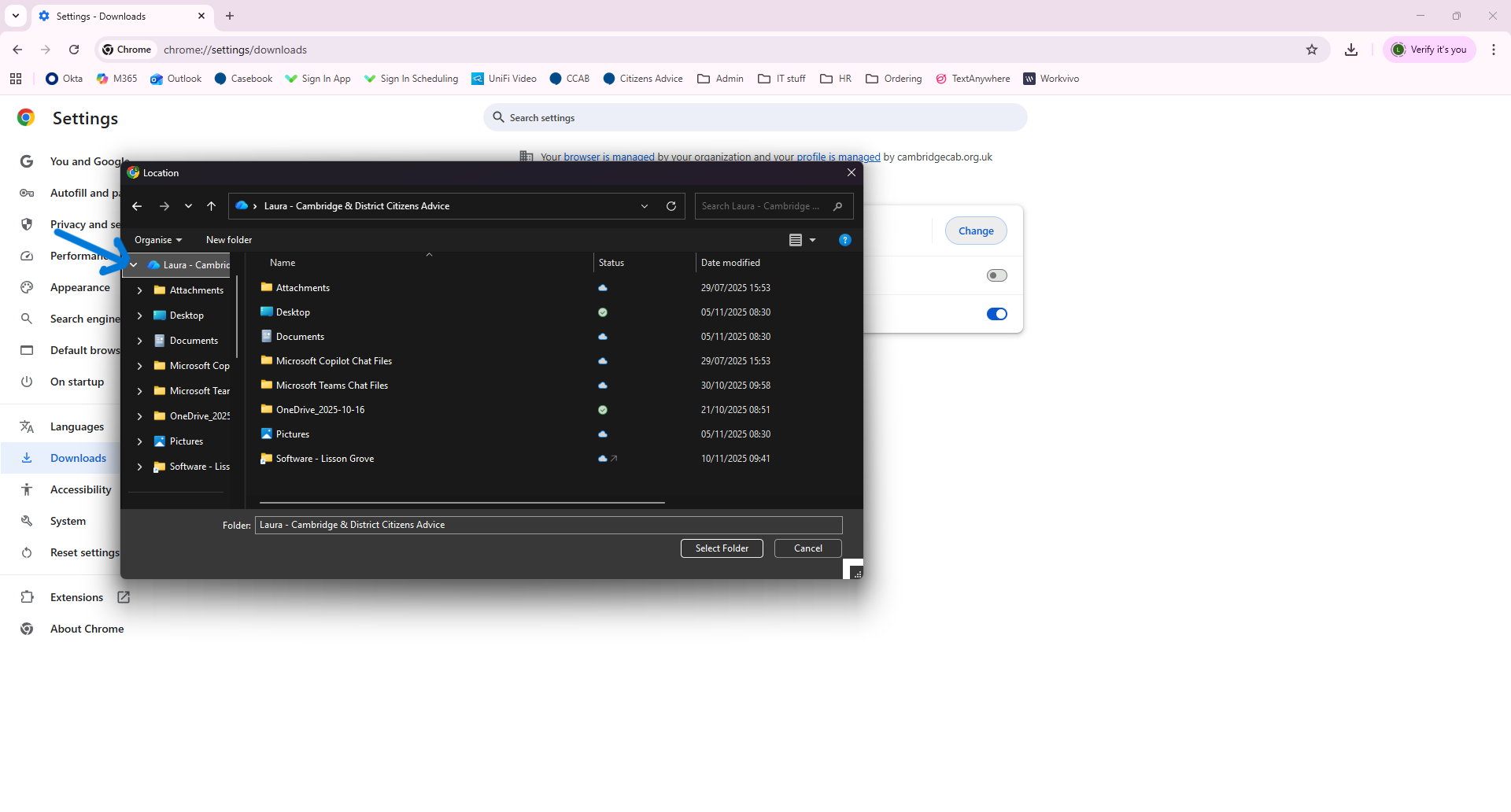
Optional: You can also select a specific folder within your OneDrive for files to save into (e.g. 'Documents', or you could create a new folder called 'Downloads').
Now your downloads will automatically go into the selected folder, so you can access them from OneDrive straight away.
If you need further help with this, or run into any issues, please raise an IT ticket.
Was this article helpful?
That’s Great!
Thank you for your feedback
Sorry! We couldn't be helpful
Thank you for your feedback
Feedback sent
We appreciate your effort and will try to fix the article